
01 / Pick a window
That window. The rest stays as it is.
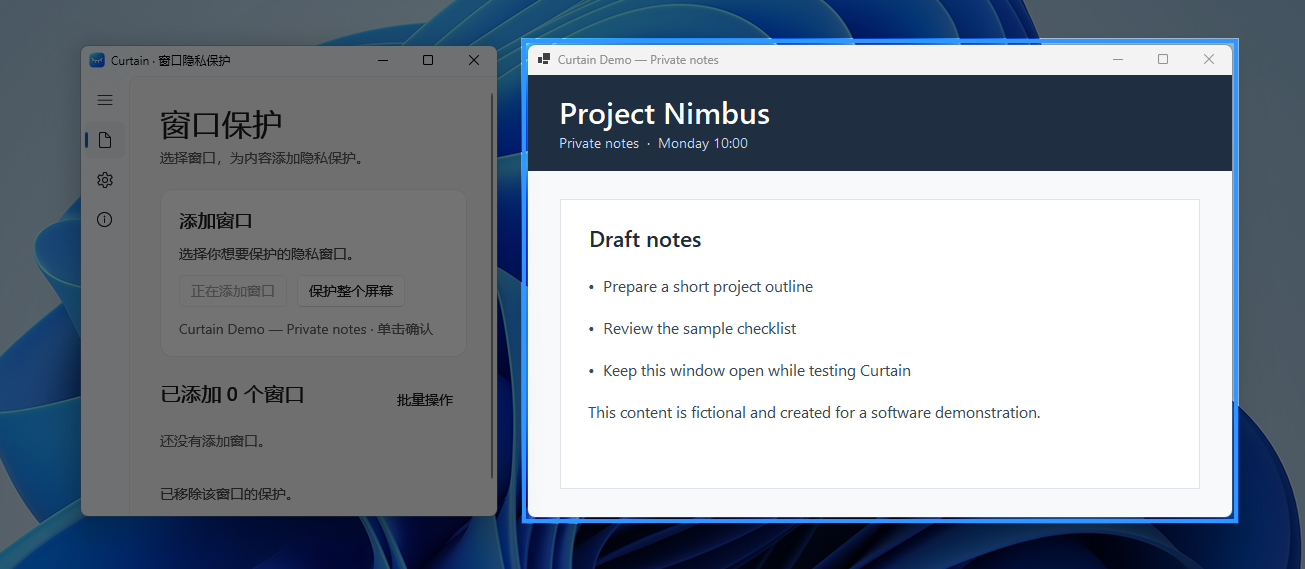
Choose Add window, move your pointer over the window you want, and click when it highlights. Add several windows and control each one independently.
Default shortcutCtrl + Shift + F9
Made for Windows0.2.0-beta.5.2
A little frosted glass for your windows and desktop. Cover what you need, reveal it when you choose, and get on with your day.
Windows x64 · Beta release · Primarily tested on Windows 11
One window or your whole desktop. You decide what to protect.
01 / Pick a window
Choose Add window, move your pointer over the window you want, and click when it highlights. Add several windows and control each one independently.
02 / One-click control
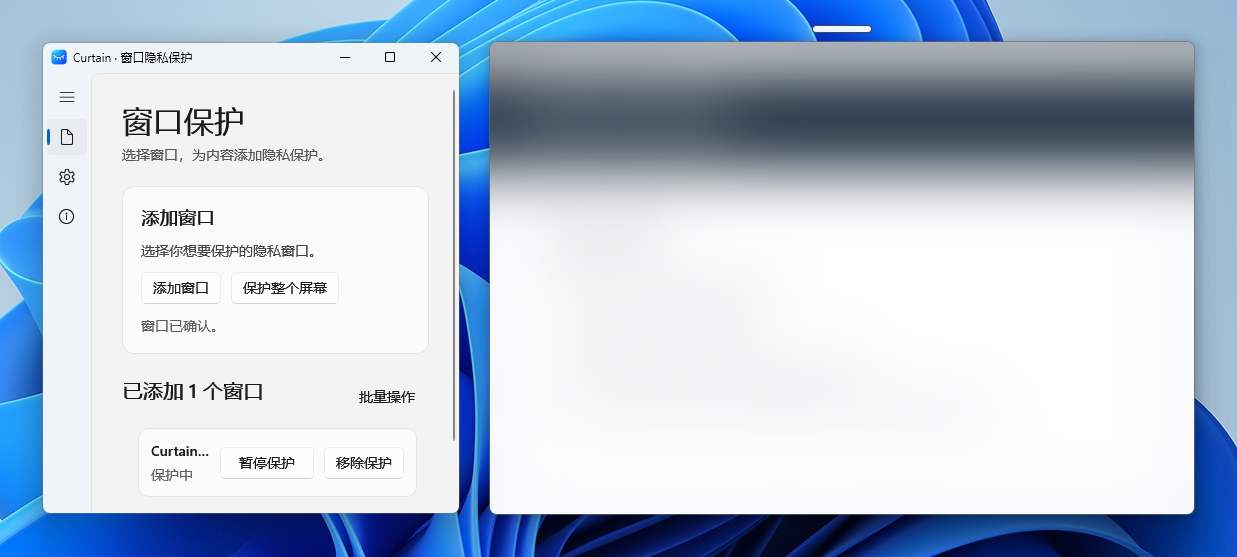
Click the small handle above a window to cover or reveal it. The overlay and handle follow as you move or resize the window.

03 / Automatic protection
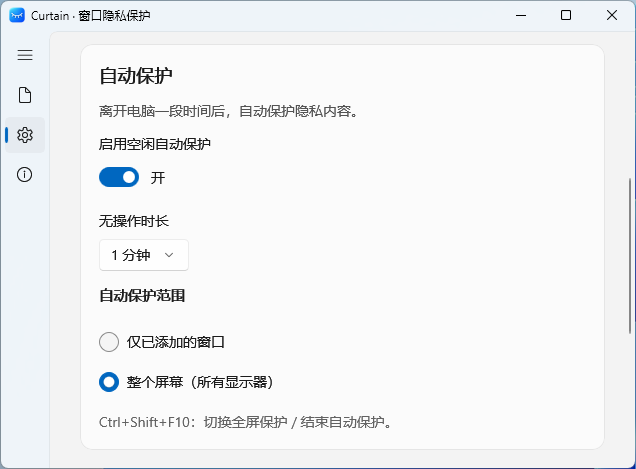
Enable idle protection in Settings, choose an inactivity period, and protect either your added windows or every display.
Off by default. Temporarily reveal a window and it will be covered again at the next idle threshold. Ending automatic protection preserves your previous manual window settings.
04 / The whole desktop
Start full-screen protection in one action, including across multiple displays. Use the Restore access button at the top, or the default shortcut, to return.

Full-screen protection / End automatic protectionCtrl + Shift + F10
See it in action
A real window-protection walkthrough. See how Curtain fits into your desktop.
Original-speed loop · Fictional demo content
The video could not be played. You can open the MP4 instead. Open video ↗
Part of your day
Temporarily cover a conversation, document, or project notes, leaving what you need in view.
Cover windows you do not intend to show, then check your shared view before presenting.
Choose an idle period that suits your routine, and let automatic protection take over.
Get started
Get the installer here or from GitHub Releases. It is currently unsigned, so Windows may show an unknown publisher warning.
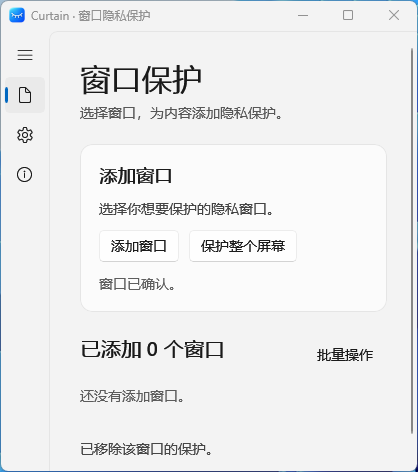
Open Curtain and choose Add window or Protect entire screen to begin.
Choose an idle time and scope in Settings if you want automatic protection. Updates can download in the background; you choose when to install and restart.
0.2.0-beta.5.2Release notes & alternative download ↗
Verify the download source. Do not disable Windows security protections to install it.
DD8D4CA12832D26AD8B1FE3FEDD70090E27003DE2AD141596E9E562E5FFF3A72Common questions
Curtain is a visual privacy overlay for Windows. It puts frosted glass over chosen windows or your desktop, helping you temporarily hide content, prepare for a presentation, or reduce what is immediately visible when you step away.
Choose Add window, move your pointer over the target, and click when it highlights. Then click the slim handle above that window to cover or reveal it. The default Ctrl + Shift + F9 shortcut also opens window selection.
Choose Protect entire screen for a full-screen overlay. Idle protection is an opt-in setting: choose 1, 3, 5, or 10 minutes and either added windows or all displays. The default Ctrl + Shift + F10 shortcut toggles full-screen protection or ends the active automatic session. Moving the mouse alone will not reveal every window.
No. Curtain is a visual overlay, not a Windows sign-in lock or a security boundary. It cannot prevent other software from taking screenshots or recording your screen. Use the Windows lock screen whenever your situation calls for it.
Separate top-level interfaces, including some IME candidate windows, may remain visible above the overlay. Blur strength is not adjustable. The list of protected running windows does not return automatically after restarting Curtain. Behavior may vary between applications.
The installer is for Windows x64, and the beta has been tested primarily on Windows 11. The project targets Windows 10 version 2004 and later, but Windows 10 runtime compatibility has not been independently tested. The installer is unsigned, so Windows may warn about an unknown publisher. Verify its source and keep security protections enabled.
Curtain can check for updates and download them in the background, or you can check from the About page. You choose when to install. The current installer is also available here and on GitHub Releases.
Open source
The app source is available under GPL-3.0-only. Explore the code, share your experience, or contribute to the next improvement.
Read the GPL-3.0-only license ↗